Check a room booking’s spend against its minimum
Filter and export the booking’s orders, reconcile payments and refunds, and compare eligible spend with the agreed minimum.
Check a room booking’s spend against its minimum
Looking for the minimum needed to book? Ask the venue or check your booking agreement. RoundTab does not set the room’s minimum or automatically calculate how much of it remains.
For venue teams checking an existing booking, use Orders → Export CSV to collect the relevant orders, then compare the eligible spend with the agreement. You will need the booking’s dates, times, every table used and the rules for what counts.
1. Open the right venue’s orders
Sign in to the Manager account for the venue and open Orders. Check the venue name and table labels before exporting. If you manage another venue through a different login, use that venue’s account; do not combine exports from different venues by mistake.
Start from Orders with any previous filters removed. Leave Search empty and set Status to All. Do not choose Paid for this check: that filter only shows paid orders that are still incomplete, so it can leave out completed orders.
2. Set the booking’s dates, times and tables
Enter the start in Date From and the end in Date To, including both the date and time. These filters use when the order was created, not when it was paid or completed. Use the time shown in the venue’s order records; confirm it with support if it differs from your booking records, especially around clock changes.
In Tables, select every table used by the group. You can select multiple tables, or use a Tags shortcut where your venue has one. Check that a tag contains exactly the tables you need: tags are table groupings, not booking records. Click Filter before exporting.
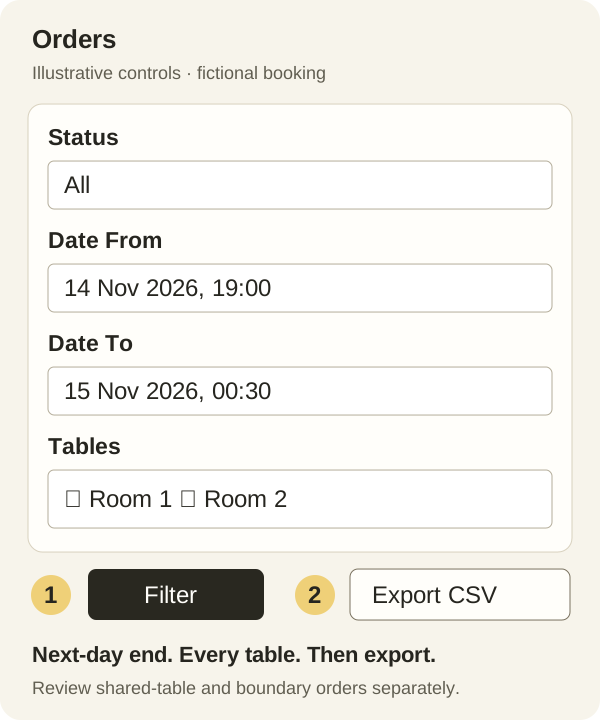
Crossing midnight: for a booking from 7pm on 14 November to 12:30am on 15 November, use those two different dates. The boundaries include orders at the exact entered times. An end of 00:30 means 00:30:00, not the whole following minute. Review borderline orders and any pre-orders separately so you neither miss them nor include the next group’s orders.
3. Export and check the breakdown
Click Export CSV on the filtered Orders page and open the file in your spreadsheet app. The export includes matching orders across all pages, not just the visible page.
Check that amounts such as 1,200.00 are recognised as numbers in your spreadsheet before summing them.
Check Order ID, Table and Created At against the booking. Remove other groups’ orders, including orders placed at shared tables during the same period. Count each Order ID once. A matching table and time do not prove that an order belongs to your booking.
Use Payment Status alongside Status and Cancelled At. Keep the original file, then work on a separate copy: it can contain customer names, email addresses and special requests, so share it only with authorised staff.
4. Work out what qualifies
The CSV is an order breakdown, not a net payment or booking-minimum statement. Reconcile these points before adding it up:
- Paid orders: Payment Status reflects a recorded positive payment with a payment reference. It is not a fresh check of the payment provider or proof that the whole order remains paid after refunds. Confirm receipts and payment records where needed.
- Test orders: exclude test activity. Do not assume the export removes it automatically; check uncertain orders against the venue’s records or with support.
- Unpaid orders: these can appear with Status set to All. Do not count them as money received. If the agreement measures ordered or consumed items instead, agree how to handle them with the venue.
- Cancelled orders: these can also appear in the export. Exclude them from a paid-spend calculation and check any payment or refund separately. Cancellation and refund are different actions.
- Refunds: the export does not deduct refunds from the original Total, and a refunded order may still say paid. Reconcile full and partial refunds using the payment records and subtract only the refunded amounts that were included in your qualifying spend.
- Service charges and tips: Total includes the order’s recorded charges and tips; Service Charge and Tip are separate columns. If they do not count towards the minimum, deduct them once. Do not add them to Total again. Follow the agreement’s tax treatment too; this order export has no separate VAT column.
- Deposits: there is no booking-deposit allocation in this export. Check the agreement and deposit receipt separately. Count an eligible deposit once only, and do not add it again if it has already been credited against the orders you counted.
- Payments elsewhere: separate till, Zettle or cash transactions may be absent from RoundTab. Add only eligible sales supported by those records and not already represented by a RoundTab order. An order marked paid manually may already represent a payment taken elsewhere. A second payment record is not necessarily another sale.
Do not use the Orders summary cards as a shortcut: their figures depend on the filters, and some status totals overlap. They do not calculate a booking’s qualifying spend.
5. Compare with the agreed minimum
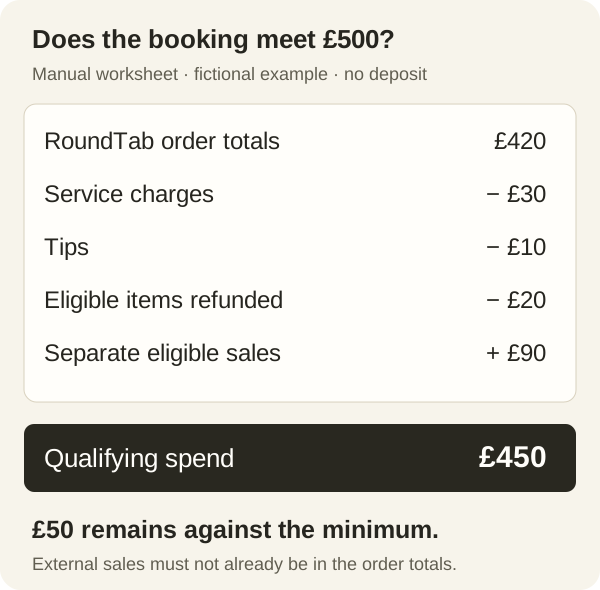
Suppose a fictional booking has a £500 minimum for food and drink, excluding service charges and tips. After checking table, time, payment and cancellation records:
- Matching RoundTab order totals: £420.
- Less service charges £30 and tips £10: £380.
- Less £20 of refunded food and drink included above: £360.
- Plus £90 of eligible till/Zettle/cash sales not already recorded in those orders: £450.
The qualifying spend is £450, leaving £50 against the £500 minimum. This example has no deposit. The agreement determines how any shortfall is handled; this calculation does not create a charge in RoundTab.
If a deposit has already been credited
Suppose the same booking had a £100 deposit, allowed by the agreement and already credited against one of the £420 of orders counted above. Add £0 for that deposit: qualifying spend stays £450 and the shortfall stays £50. Adding it again would incorrectly show £550. Do not also subtract it from the minimum. If the deposit has not been credited, check the agreement and receipt before deciding how to include it.
What about the Reports screen?
Reports → Create → Revenue Breakdown Per Table provides whole-day totals per table. Set Date From and Date To, click Generate, then return to Reports and click the report’s CSV filename under Download Reports when it is available. Those dates include the entire final day. This form has no booking-time or selected-table controls; use the filtered Orders export above for a booking breakdown.
The table report selects orders with a recorded payment and excludes cancelled orders. It sums original order totals, not refund-adjusted spend. Multiple payment records on one order can also repeat that order’s contribution in the report. Revenue Breakdown By Table Tag can include the same table in more than one tag, so do not add overlapping tag totals together.
If you cannot identify the group’s orders reliably, stop short of declaring that the minimum has been met. Check the booking sheet, receipts and till records with the venue team. For fee and payout questions, see Stripe payouts and application fees.